

The Ultimate Guide to Google Opal for Product Leaders (with prompts)
Create mini-apps in less than 10 minutes

Hi, I am Marily and I experiment with all AI tools.
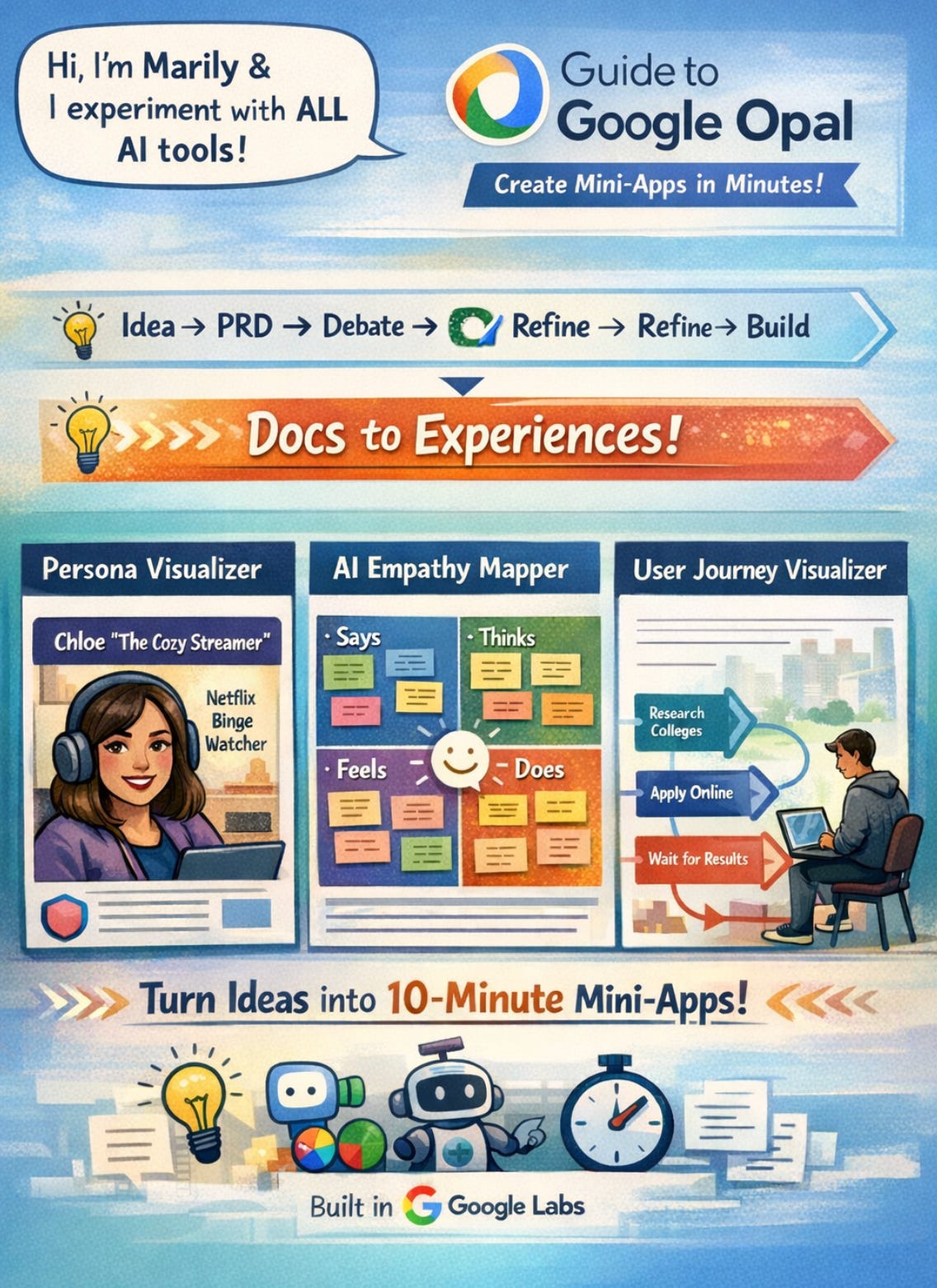
Today I created a guide for Google Opal, an experimental tool to create mini-apps from Google Labs. The way we build has shifted from:
Idea → PRD → Debate → Refine → Build
to:
Idea → Brainstorm with AI → Prototype the vibe → Team experiences it → Refine → Build.
In this post, I’ll show you what that shift looks like in practice — using a tool that lets you build fast mini-apps.
The shift: from documents to experiences
A few years ago, I spent half my time writing about ideas — PRDs, briefs, decks, “vision one-pagers.” Those documents helped, but they were slow, and they rarely captured the feel of what we were trying to build.
Now, I skip the doc entirely. If an idea pops up, I jump straight into an AI builder, create a small working version, and send the team a link.
Ten minutes later, we’re reacting to something real. That workflow is the biggest change in product management since the rise of Figma. One tool making this possible is Google’s Opal. It collapses the abstract layers of documentation, spreadsheets, tickets and so on. More specifically, it lets you turn a thought into a working mini-app in minutes. Together, they make PMs think through building, not just talk about building.
Google Opal — turning ideas into 10-minute mini-apps
If there’s one tool every PM should start with, it’s Opal, it’s fastest way to prototype the vibe. Opal lives in Google Labs and lets you describe what you want in natural language — “an empathy map builder,” “a quick journey visualizer,” “a competitor snapshot” — and it assembles the app for you. There’s no setup, no code nor hosting needed. You end up with small, functional apps — what I call 10-minute tools.
They’re not production grade but they’re perfect for the discovery phase i.e. brainstorming or validating via quick demos for execs.
How Opal works
Each Opal app is a sequence of nodes:
Input — what the user gives you (text, forms, files).
Generate — what the AI (Gemini or Imagen) does with it.
Output — how you show the result (webpage, Doc, or Sheet).
You connect them visually on a canvas and they are all editable in plain English.
You hit Preview, test your flow, and if you’re happy with it share a live link.
That’s it. Ten minutes.
Examples
Example 1: Persona Visualizer
What if each user “came alive” visually, so you could understand better who you are solving for?
<prompt available at the bottom of the article>
Opal then generated this workflow that includes 4 steps: user input, image generation, persona visuals and an entire webpage that puts it all together.
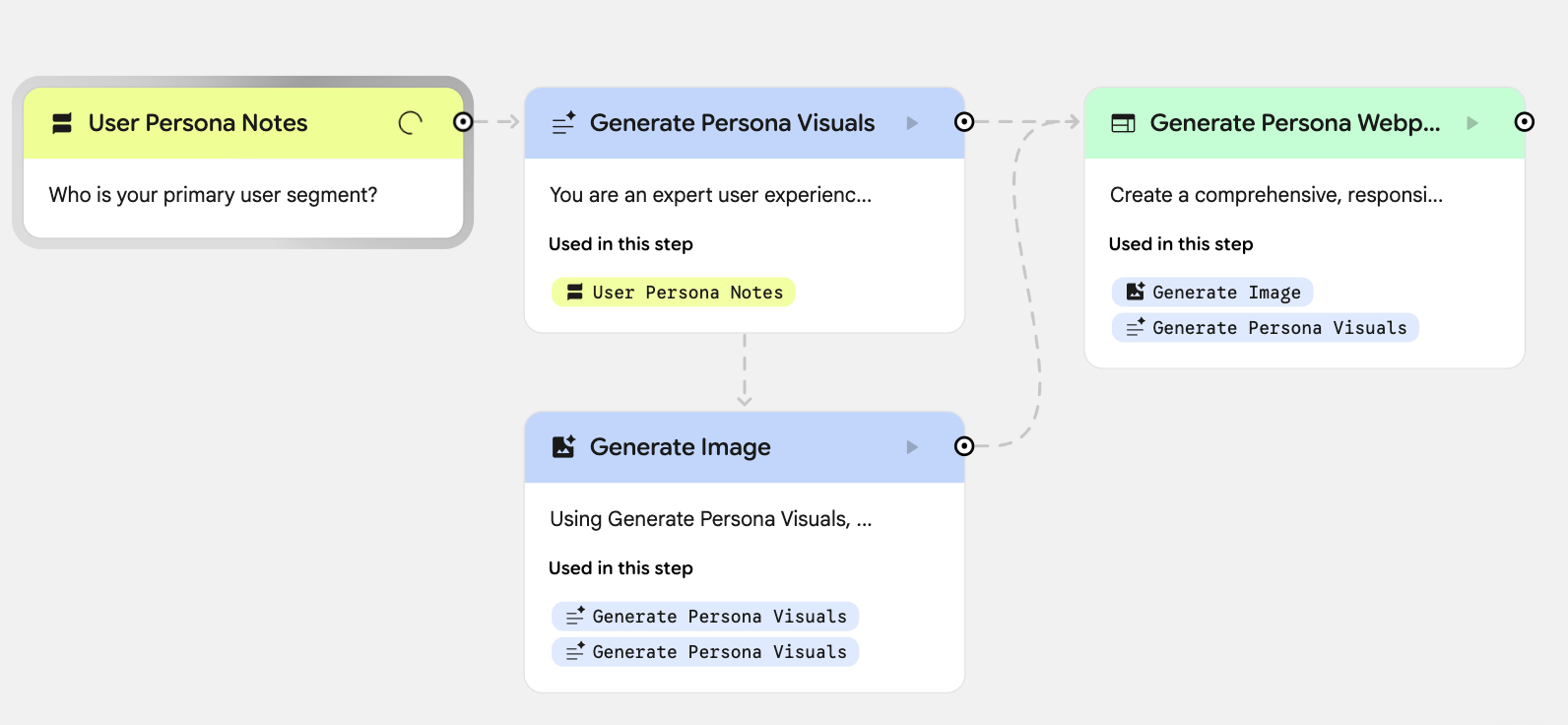
And I can now test it by tapping on Preview. When prompted who my primary user segment is, I typed: “Netflix Binge Watchers” and here is Chloe “The Cozy Streamer”
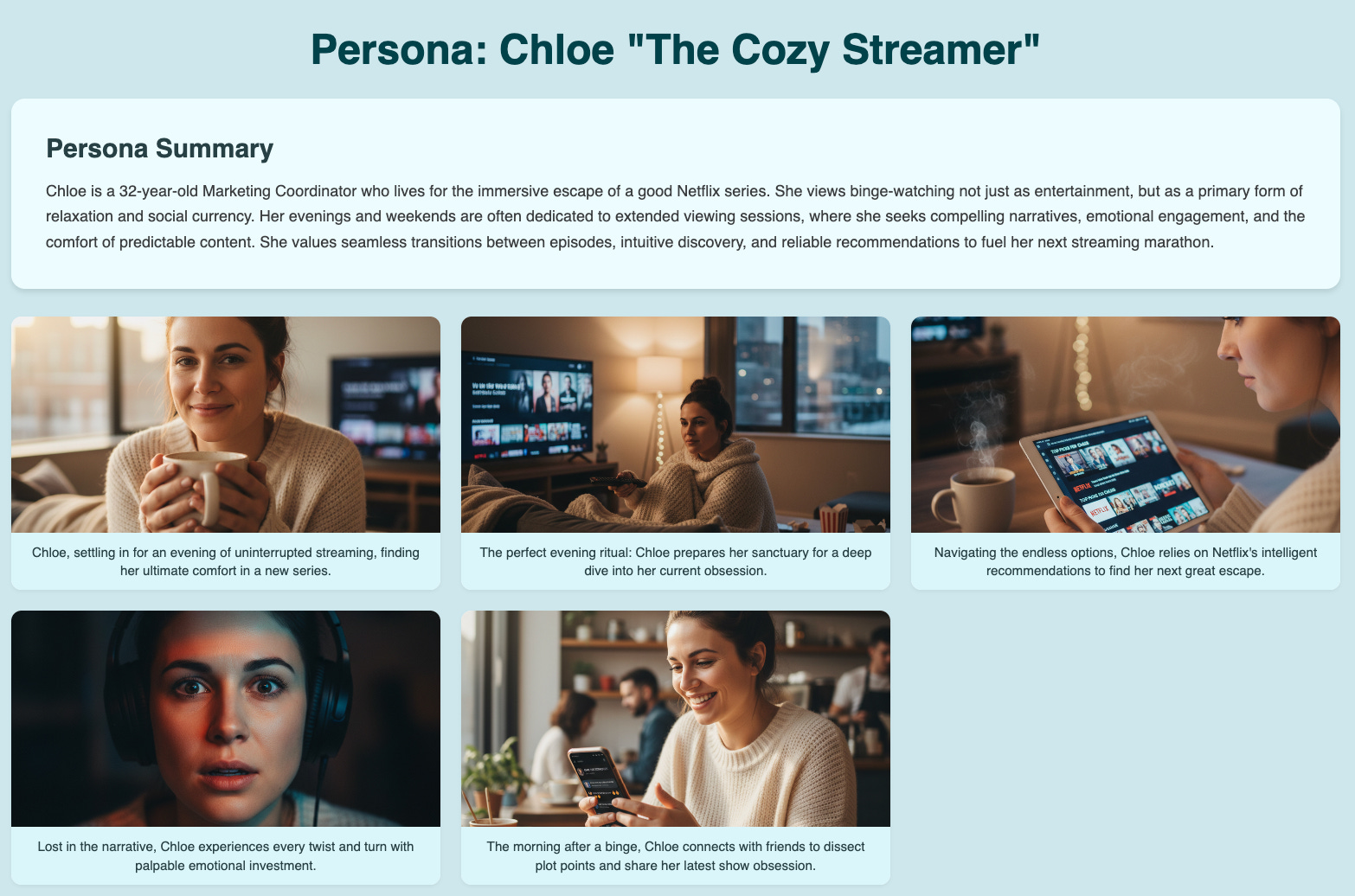
You can try this Opal out or even remix it here
Example 2: Empathy Mapper
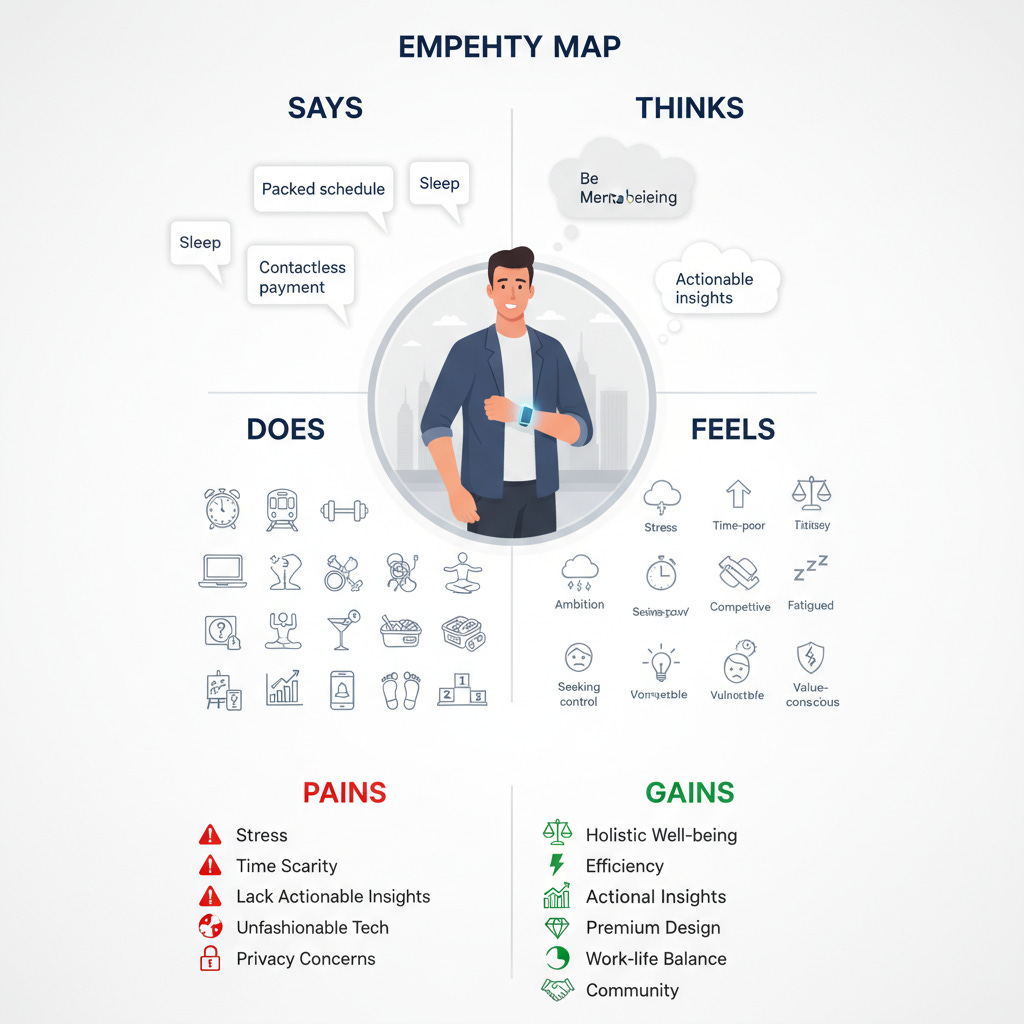
Empathy mapping used to be a post-interview ritual that took hours. Now, I can spin one up in minutes — and the result feels surprisingly good. For those that are not familiar with empathy maps, there are 4 sections that belong in an empathy map: Says, Thinks, Does, Feels. Empathy Maps really help PMs deeply understand and internalize the user’s perspective, motivations, and pain points.
The difference between this and the Opal above is that this one has the capability to search the web, and the user needs to provide input in 2 steps. It also takes as an input raw user interview transcripts. For this example, my input was: user segment and use case, so I typed: “Young professional in new york, smart wristband”, here is the output:
Try it or remix it here
Opal analyzes the text, builds the sections, and outputs a clean, visual empathy map with bullet points under each quadrant.
Team experiences it → I share the link during synthesis. Everyone sees patterns emerging in real time.
Refine → “Emphasize emotions,” I tell Opal, and it updates the Feels quadrant immediately.
Build → We later integrate this logic into our internal research tool.
The point isn’t that it enhances user research. The AI handles structure so we can focus on insight.
Example 2: User Journey Mapping
Onto something more complicated. This is the one that made me realize how far AI tooling has come. Journey mapping used to mean whiteboards, post-its, and long figma files. Now I can create a visual flow from a paragraph of text.
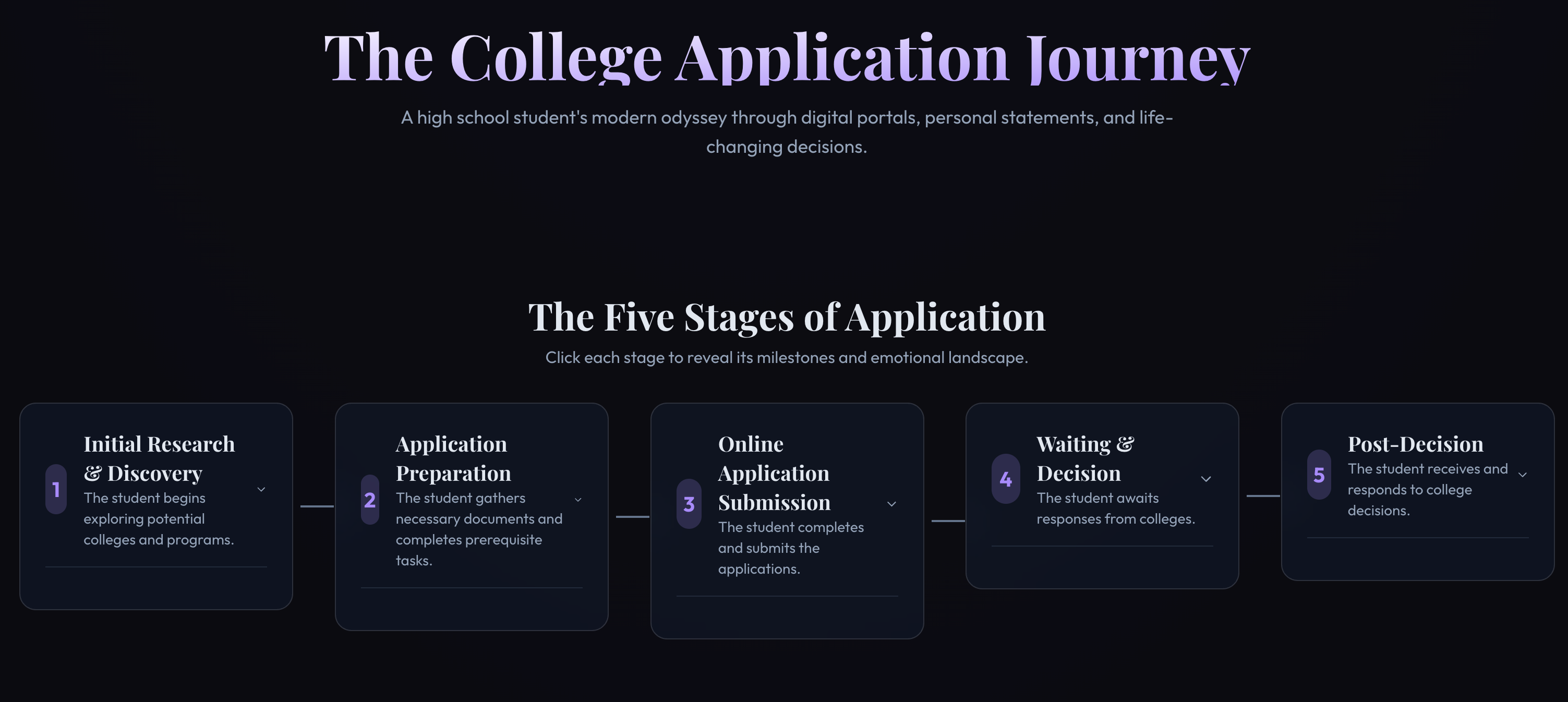
My input was: “High school student applying for colleges online”

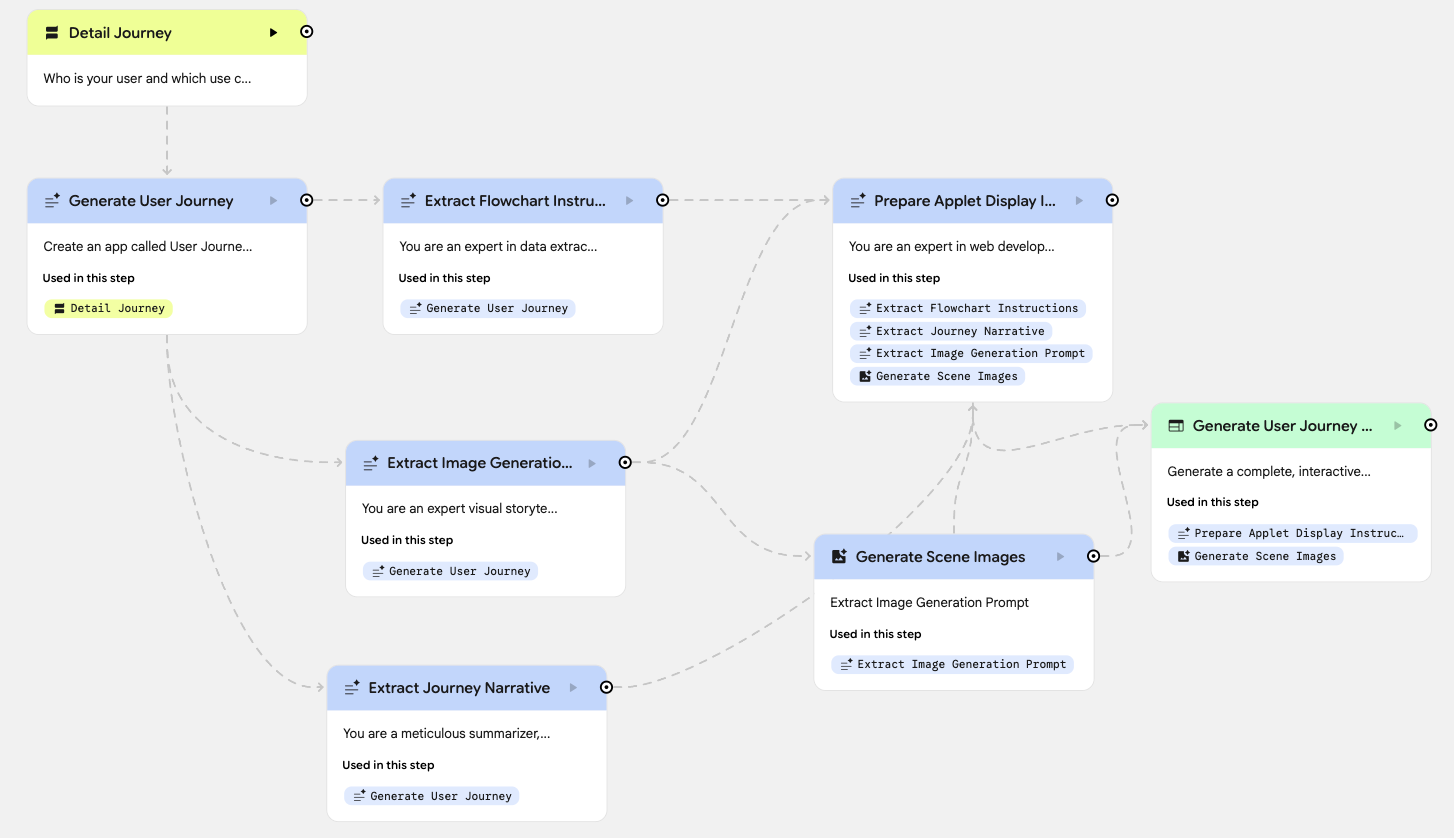
The workflow that was generated is a bit more complicated because Opal realized it needs several different roles to achieve our goals, that of a ‘visual storyteller’, ‘meticulous summarizer’ among others, in order to generate the final user journey.
More Opals you can try (PM and non-PM related)
Bucket List Collage (my favorite!)

TLDR: when to use Opal
Use Opal when:
You want to validate an idea before writing a PRD.
You need a quick tool for a workshop or meeting.
You want to make research or concepts visible.
You want to better empathize about your user
Think of Opal as your 10-minute lab.
If it takes longer than that, move it to a full prototype — that’s where other AI prototyping tools come in.
